
Explain it from your screen, fast
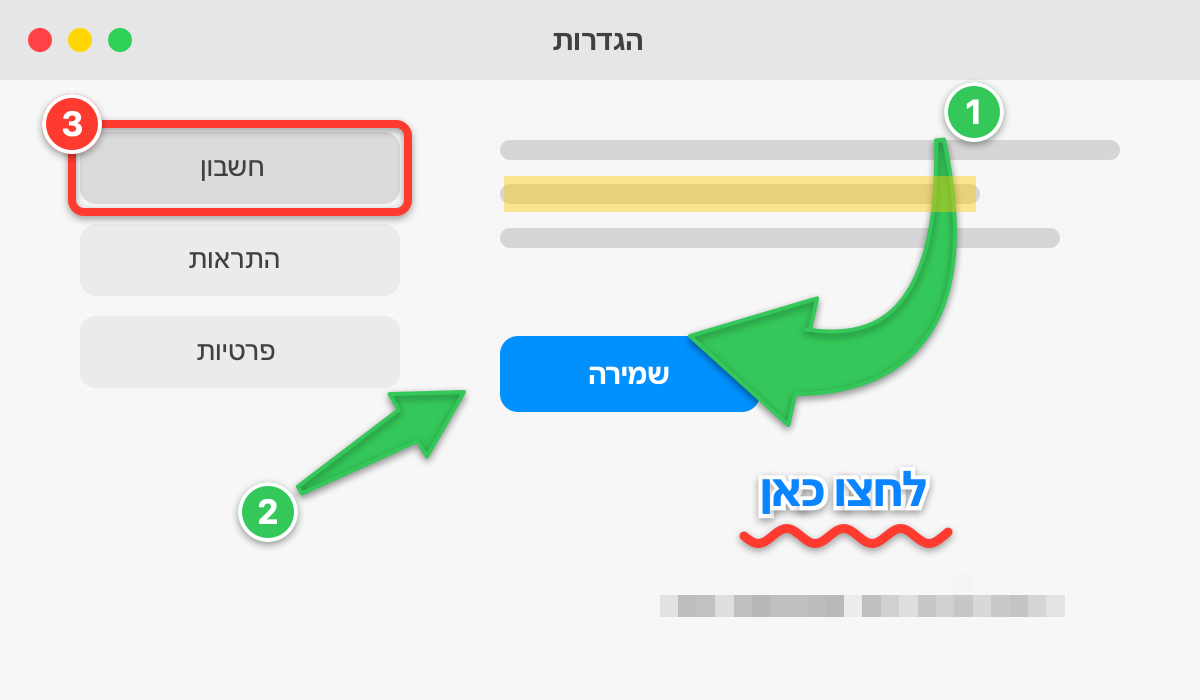
Capture an area Add an arrow Paste it anywhere
Need to guide someone or explain something? A picture with an arrow or a short video, ready to paste in seconds.
This download is for Mac
Send yourself the link and open it on your Mac.
The app won't run on this computer. Have a Mac? Open this link there.
iPhone and iPad: coming soon to the App Store.
Two shortcuts. That's all
Picture
Press the three keys together, then drag over the area you want to capture.
Video
Same thing with R: drag over an area, or press Enter to record the whole screen.
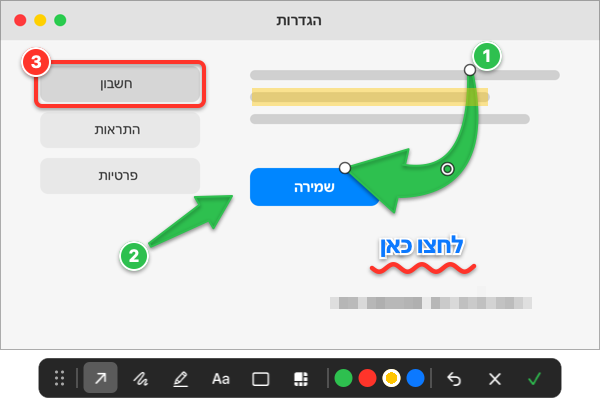
Seven marking tools, nothing more
-
A thick arrow that bends
Drag to draw an arrow. Something in the way? Pull the middle and the arrow curves around it.
-
Numbers that count themselves
Each click drops a circle with the next number: 1, 2, 3. Handy when you explain something in steps.
-
A freehand pen
Draw by hand: a circle, an underline, or any other shape.
-
A see-through highlighter
Drag over text to highlight it; the text stays readable.
-
Text
Click the picture and type.
-
Frame
Drag around what you want to highlight.
-
Blur
Drag over anything you'd rather hide, like a phone number or an amount.
Four colors to choose from. Made a mistake? Command + Z undoes the last mark.
Screen recording
Need to show a process? Record a video
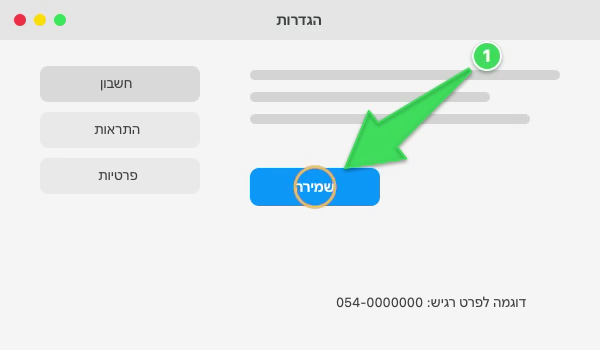
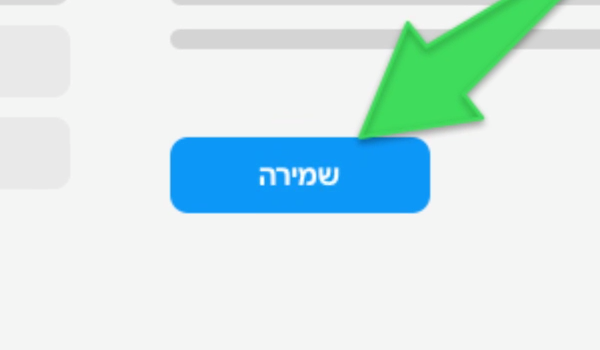
The same arrows and numbers, this time while the screen is recording. When you're done, paste the video the way you paste a picture.
-
Start and stop with the same shortcut
After you pick the area there's a three-second countdown, then recording starts. Control + Option + R again stops it.
-
Arrows and numbers as you go
Hold Control + Option and draw on the screen while recording.
-
A zoom that follows the pointer
Control + Option + Z moves the picture in on where you're working.
-
Clicks you can see
Every mouse click gets a ring, so it's clear what was clicked.
-
Paste it, and the video is gone
When you stop, the video is ready to paste as an MP4 file. Ten minutes later it deletes itself.
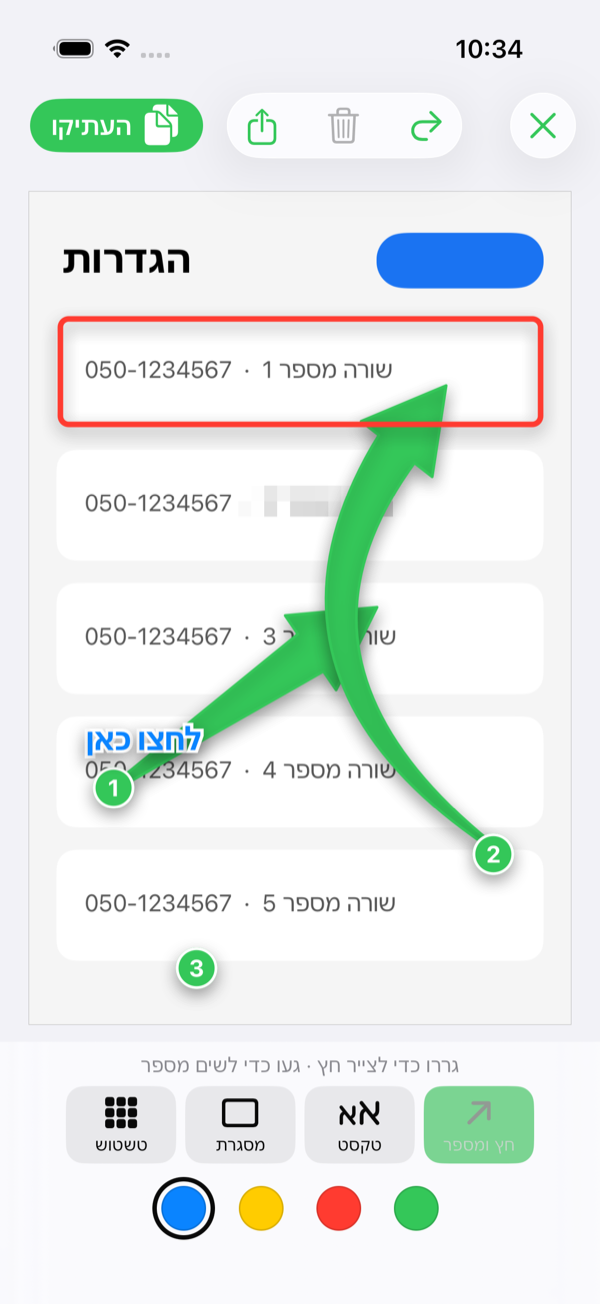
iPhone and iPad
Mark up a screenshot on iPhone and iPad too
The same arrows, numbers, text, frame and blur, on an ordinary screenshot. Pictures only: video recording is on the Mac.
Take a screenshot as usual
With the device buttons, the way you always do.
Share it to PlayzoneShot
Tap Share and choose PlayzoneShot. You can also start it from a shortcut in the Shortcuts app.
Mark it and copy
One button copies the marked picture. Paste it wherever you like; a minute later it's cleared from the clipboard.
Coming soon to the App Store
The iPhone and iPad app isn't in the store yet. The button will appear here once it's approved.
Nothing is kept.
Nothing leaves your device.
- Closes by itself. After you paste, the window disappears. It never asks where to save.
- Deletes itself. A picture is cleared from the clipboard a minute after you paste. A video is deleted from the computer after ten minutes.
- Stays with you. No files piling up, no account, no cloud, and nothing is sent to anyone.
Install on a Mac in three steps
-
Open the downloaded file
PlayzoneShot-1.2.dmg is waiting in your Downloads folder. Double-click to open it.
-
Drag it to Applications
In the window that opens, drag PlayzoneShot onto the Applications folder next to it.
-
Allow screen recording, once
Open PlayzoneShot from Applications. Your Mac asks for permission to record the screen: allow it in System Settings, under Privacy & Security, then open the app again.
The first time, your Mac asks whether to open an app downloaded from the internet. That's normal: click Open. After that the app waits in the menu bar, at the top near the clock.
What you need
A Mac with macOS 14 or later. Works on Macs with Apple silicon and on Intel Macs. The app speaks English and Hebrew, following your Mac's language.
The download is waiting on your Mac: open this link there.
Download for Mac Version 1.2 · 941 KB